Category

Features & How-To

10 posts

Last updated: (2947 days ago)

Smarter settings

We’ve unified your Radio4000 settings. Now there’s a single location at radio4000.com/settings, where you can customize your radio, add it to the global Radio4000 map, make a backup or manage your account.

Before this update, settings were split between /auth/settings and /{channel-slug}/edit. Now, both will redirect to /settings.

If you are interested in the code changes, check the pull request #226.

And as always, please send feedback on https://radio4000.com/feedback. Enjoy!
Use Radio4000.com on mobile devices

Since the beginning of the project Radio4000 has been thought, designed and coded to work well on every devices, operating systems and browsers.

One long time issue was using Radio4000 on mobile devices, because until now it was not possible to play a Radio4000 radio and lock the device’s screen.

This is now solved!

Backup your Radio4000 radio data

While using Radio4000 each user are building a library of sounds. All the tunes added in your radio, its name, description, compose the data associated with your account on the application.

You own this data, all content you add on Radio4000.

Therefore you should have the possibility to always have this data stored where you would like. Radio4000 is simply a space online where you can store and edit it.

Search tracks, listen to results

Hello!

Today a new feature appears on the site, tracks search.

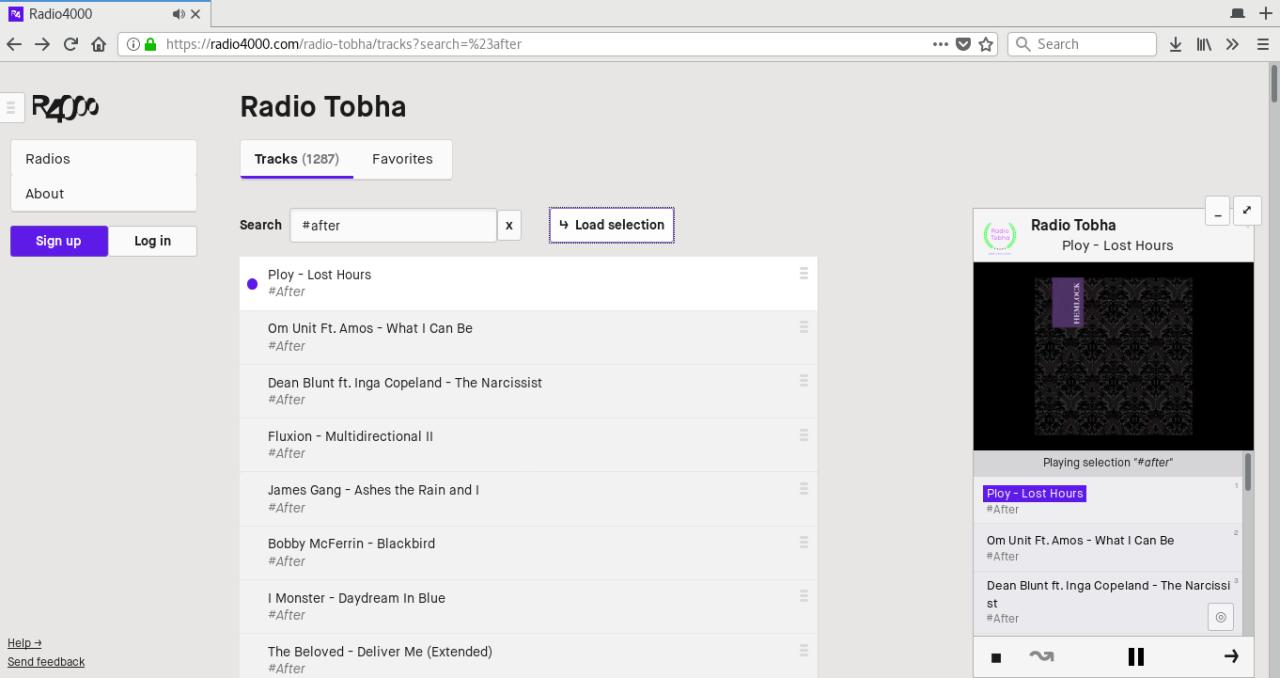
On top of now being able to search any radio tracks, and find the one you want to play, you can from today listen to a selection of tracks from a radio.\

Fig 1. playing selection “#after” from Radio Tobha
That’s right, you can try it now, go to any radio (of course, yours too!), and explore the list of tracks. Just search for something, and if there are any results press the “load selection” button to listen to everything in the player.

Keyboard shortcuts

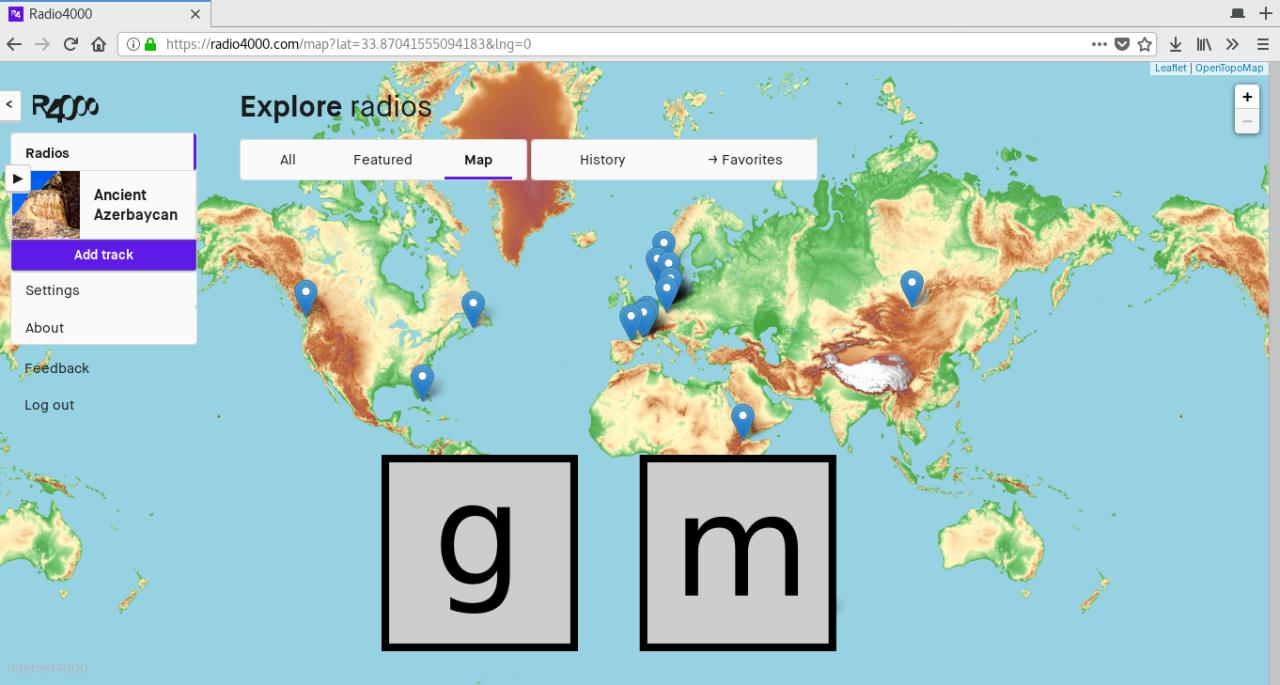
You enjoy discovering and sharing music on Radio4000, but you would like the experience to be done without the mouse, keyboard only?

We just implemented new Keyboard shortcuts to improve your time on the site. find the full up-to-date list on in the support center.

Fig 1:  keyboard shortcut `g m`, “go to map”

Embed a Radio4000 with an Iframe, on any website

From today you can embed your Radio4000 onto any other webpage. Meet RADIO ARKOV.

How to use?

You need to add to your site the following snippet of code. You will find the right code to be copied at the bottom of every Radio4000 radio page.

You can customize the values in pixels of `width` and `height` of this `iframe` HTML element to suit your design needs. If you look closer, you will see the part in the `src` property, ending with `?slug=arkov`. Replace `arkov` for your radio slug and it will work too! Not something to remember, just fun to know.

Protip: /play & /play/random

Hello there,

just wanted to share with you two good tips to start listening to a radio as fast as possible.

Let’s take a radio, could be yours, could be anyone else’s, let’s say balls, radio4000.com/balls, hi balls!

When you want to play this radio on radio4000.com, you will probably type the address of radio4000 in your web browser, then visit the radio page before finally hitting the play button or a track on the chosen radio.\

API for Radio4000.com

Yes, Radio4000 now officially has an API!

api: https://api.radio4000.com
documentation & code: https://github.com/internet4000/radio4000-api

This means you can now use the public data from Radio4000.com (such as the radio channels and their tracks) to create any softwares, hardwares, websites or applications.\

What is an API?
An API (application programming interface) can take many aspects and is a term generally used in software development. In the current case we could summarize it as a set of tools and specifications defined (here by the Radio4000 team) to help developers apprehend and use data made available through the API.\

Radio4000 has a new player

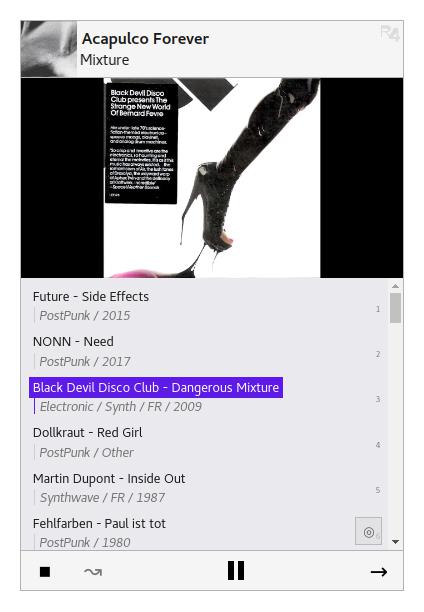
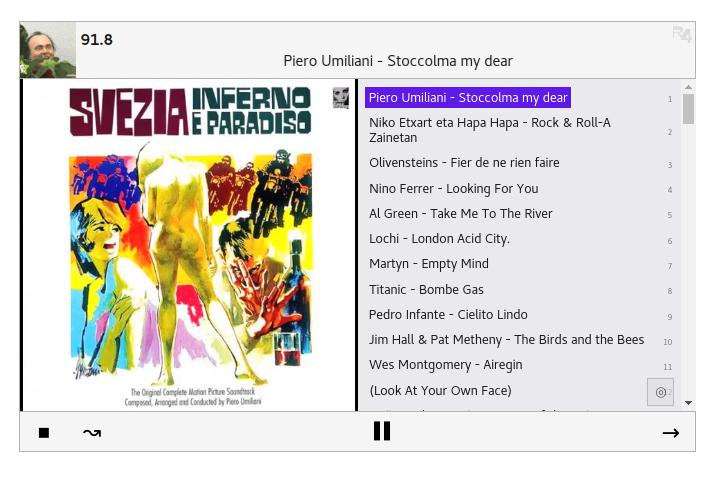
Radio4000 has a new player. It has been deployed to all users since some days and will also allow anyone to embed and customize a player (or many) with any radio on their site.

It is written in javascript, html and css, the code is available on Github, radio4000-player package under npm.

How to use the Radio4000 bookmarklet to add tracks faster in my radio?

How to use the Radio4000 bookmarklet to add tracks faster in my radio?Here is a solution that works for every one, on mac, pc, mobile, tablet or smartwatch (alright, possibly not that one), without having to install anything!Much simpler to explain it with gifs (above), but here is the text explanation:drag the bookmarklet to your browser’s favorite baropen a music you like on Youtube. Click the bookmarklet (you just added it in your browser’s favorite bar!)now that you have been redirected to your Radio on Radio4000, just click Add Track to add this music to your radio. Done!From now on, just repeat step 3 each time you want to add a music to your Radio4000.Note: in order for the bookmarklet to work, you need to be logged-in your Radio4000. If you are not, just log in the usual way and start again at step 3.